Edit your website
Ask the dashboard AI in plain words, or use the Sections and Content screens, to change website copy, photos, order, and layouts.
You can edit your website directly from the dashboard. The easiest way is to tell the dashboard AI what to change. To upload new photos or review many items at once, use the Sections and Content screens.
Sections and content go live on the public website as soon as you save. There is no separate publish step or draft. The AI asks for confirmation before a hard-to-undo request such as a delete.
Scenario and success criteria
Example: a clinic features one service this month. It changes the signature service list in the second home section from sliding cards to one large card at a time. It moves the event section above that list. It replaces the photo of an ended event. It picks the shape first in Section layouts by type.
Check that only the requested section changed. Check the order and photos on a phone and on a computer. Check that the booking and consultation buttons still work.
Before you begin
- Sign in with an account that can edit sections and content.
- If you have several branches, select the organization to edit.
- Find the section on your website and note its heading. Point the AI to a section by its heading.
How a website page is built
A page is a stack of sections. Each section has two parts.
| Part | What it holds | Where to edit |
|---|---|---|
| Content | Heading, short line, description, photo, and child items | Content screen |
| Section | The page, the position, the type, and the layout | Sections screen |
Copy and photos live in content. Order and layout live in sections. If several pages use the same content, editing that content changes all of those pages.
Ask the AI in plain words
Open a new conversation
Select the + button beside Conversations in the sidebar. A new internal conversation opens. It is not a customer conversation.
Name the section and the result you want
Point to the page and the section heading. Describe the result in one sentence. For a layout, use a layout name or value from Section layouts by type.
Read the AI reply
The AI tells you which section or content it changed. For a delete or a bulk change, it asks for confirmation first.
Reload your website
Reload the public website to check the result. If the result is not what you want, ask the AI to undo it in the same conversation.
Example requests
| What to change | Request | Result |
|---|---|---|
| Copy | Change the home hero heading to "Time to look at how you move." | The heading of the first section content changes. |
| Copy | Shorten the "Our Principles" description on the About page to two sentences. | The AI shows the shorter text and updates the description. |
| Layout | Change the home "Signature Care" section to one large card at a time (slider) and show one card per view. | The section layout becomes slider with 1 column. |
| Columns | Show four people per row in the "Our Doctors" section. | Columns become 4. |
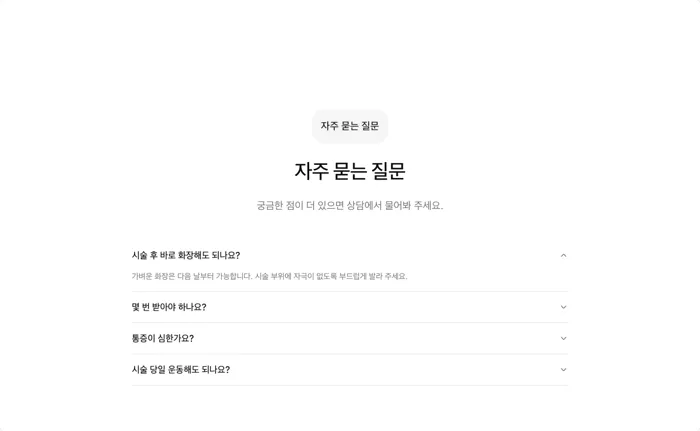
| Heading position | Put the heading of the home FAQs on the left. | Side by side (split) turns on. |
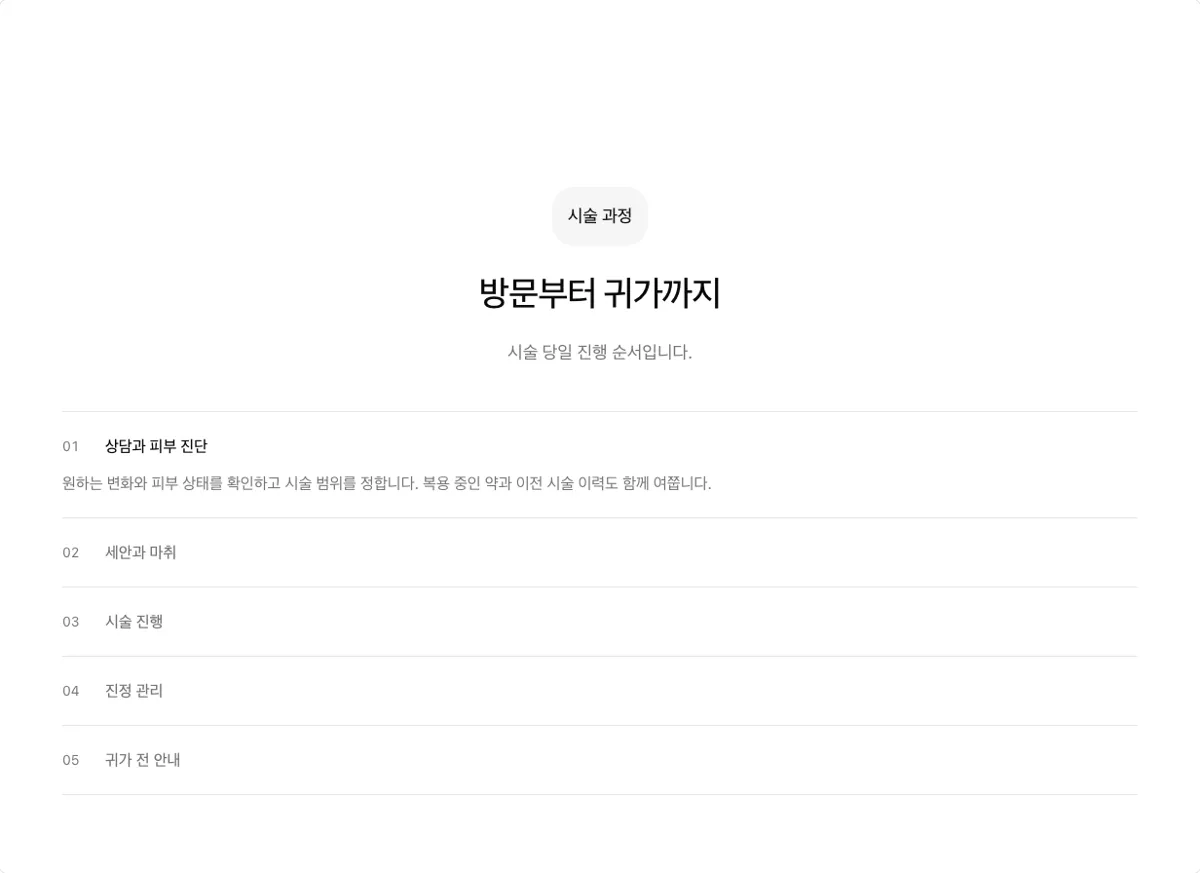
| Layout | Change the "Process" section to a numbered collapsible list. | The steps section becomes a features section with accordion-numbered. |
| Order | Move the "Before and After" section right above "Our Doctors". | The section order changes. |
| Photo | Use the "Directions" section photo on the first "Our Principles" card. | The card photo changes to a photo that is already uploaded. |
| Add item | Add a "Night clinic" card to "Our Principles" with the description "Open until 9 PM on weekdays." | New content is created and linked as the last card of the section. |
| Hide | Remove the home "Care in Videos" section. | The AI asks for confirmation and deletes the section. The content stays. |
The section names are examples. Use the section headings that appear on your website.
Example result: put the heading on the left
Ask "Put the heading of the home FAQs on the left." The AI turns on Side by side (split) for
that section. The copy stays the same. Only the heading position changes. The screens use sample
data.

Example result: change a layout
Ask "Change the process section to a numbered collapsible list." The layout becomes
accordion-numbered. This shape is recommended for four or more steps with long descriptions.

The AI cannot always register a photo that you attach to the conversation as a website photo. Upload new photos on the Content screen. The AI can reuse a photo that is already on your website.
Edit on the screens
Change copy and photos on the Content screen
Open Content under Settings in the sidebar. Select the content. Edit Name, Slogan, and Description. To change a photo, drop a file on the Image field or select Replace image.
Change the order on the Sections screen
Open Sections under Settings. Sections are grouped by page path. The home page is the group with an empty path. Drag a section row to its new position.
Change the layout in the section options
Select the section. Change the Layout value in Options. Find layout values in Section layouts by type.
Add content
Create the new item as content first. Then connect it to a section that shows it. The dashboard supports these paths.
| Content to add | How |
|---|---|
| Treatment page | Create the treatment content and link child items for features, candidates, and precautions. Add sections with a new page path to create that page. Ask the AI to "create a new treatment page with the same structure as an existing one" to copy the section structure. |
| Before and after cases | There is no dedicated feature. Create content with the before and after photo as its image. Connect it to a section with the Wide photo track layout, which keeps the photo ratio. Check patient consent and medical advertising rules first. |
| Events | For an event on the website, connect content with the event photo and copy to a section. Register the discount and period on the Promotions screen with the type Event. Promotions drive price quotes and AI consultation answers. They do not appear on the website by themselves. |
| Blog posts | You cannot add a blog post body from the dashboard today. To move or publish blog posts, ask your Laney contact. |
| Prices | Manage treatment prices on the Products screen. See Operate products and promotions. |
To add a new page to the menu, link its content under the header content. If the menu is complex, ask the AI, for example "add the new treatment page under the About menu".
Check the result
- After a reload, only the requested sections changed.
- On a phone, the section order, photo crops, and line breaks look right.
- The changed copy fits every other page that uses the same content.
- The booking, consultation, and call buttons open the same targets as before.
- If you have other languages, you checked the copy in those languages too.