LINE preparation
Send the admin permission link and invite the Laney developer to the LINE Developers Console.
Before you start
- Your LINE official account is open.
- Your LINE business account holds admin permission on that official account.
- If you tried a LINE chatbot before, check whether a Provider already exists.
Send the admin permission link
Work in LINE Official Account Manager (manager.line.biz), not the LINE Developers Console.
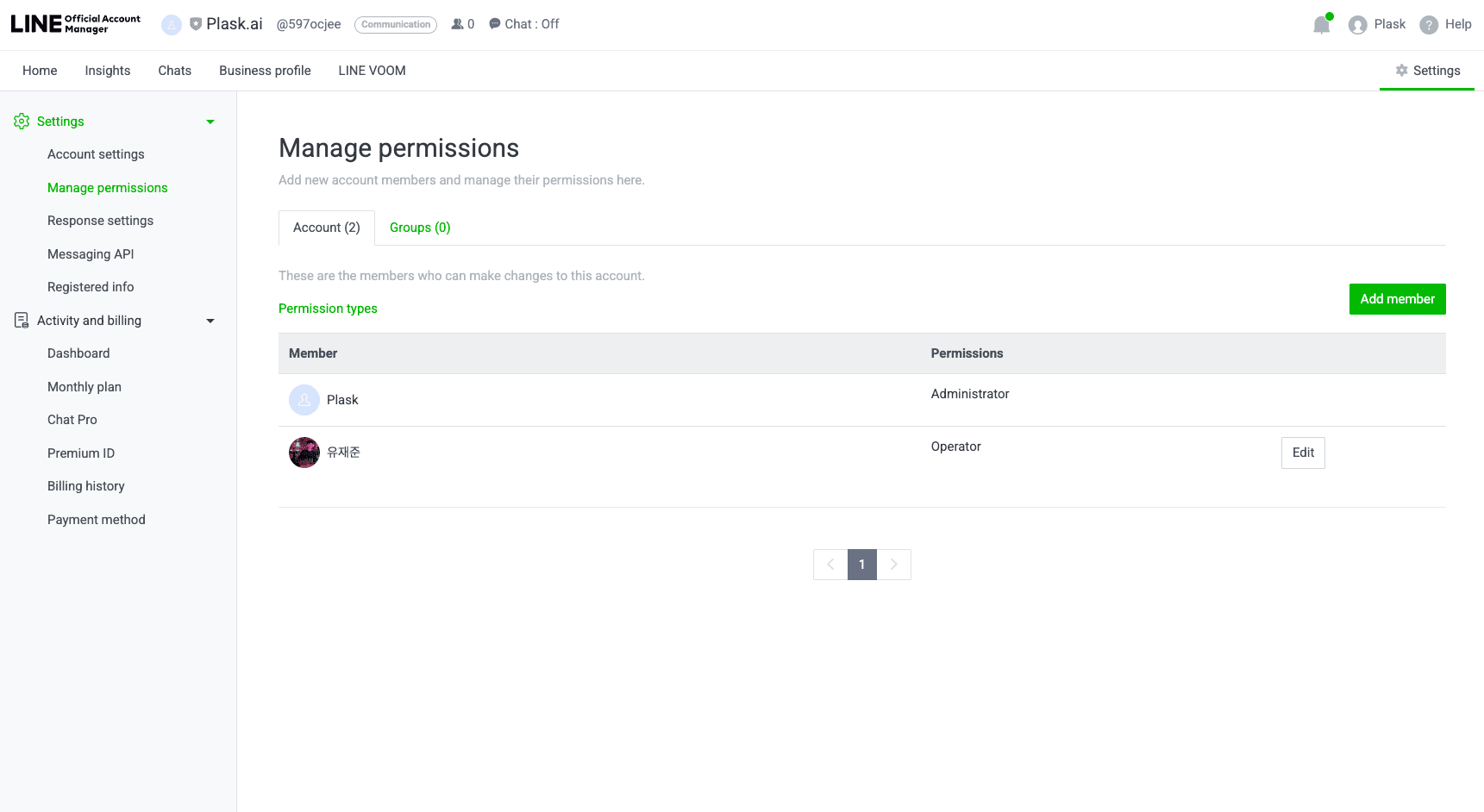
- Open Permission management under Settings.
- Select Add member.
- Choose the Admin permission.
- Select the button that issues the URL. It appears as Issue URL or Generate Link depending on the interface language.
- Send the issued authentication URL to the Laney contact.
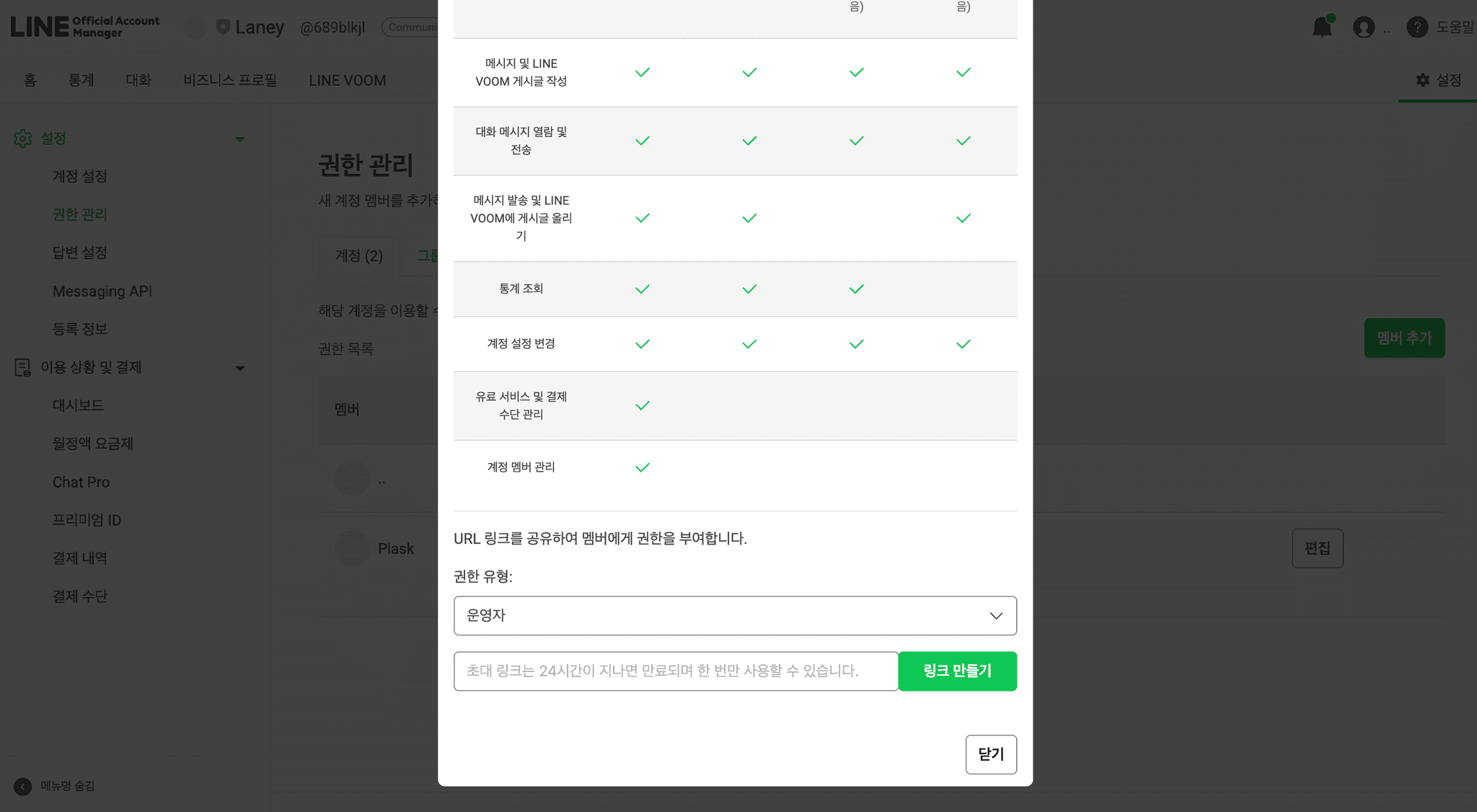
The link expires in 24 hours
An issued URL stops working after 24 hours and can be used by one person only. Send it to the contact right away. If it expires, issue a new one from the same screen.
Operator permission is not enough
With operator permission, Laney cannot enable the Messaging API. Choose Admin.
Invite the developer account
Sign in to the LINE Developers Console (developers.line.biz) with your LINE business account.
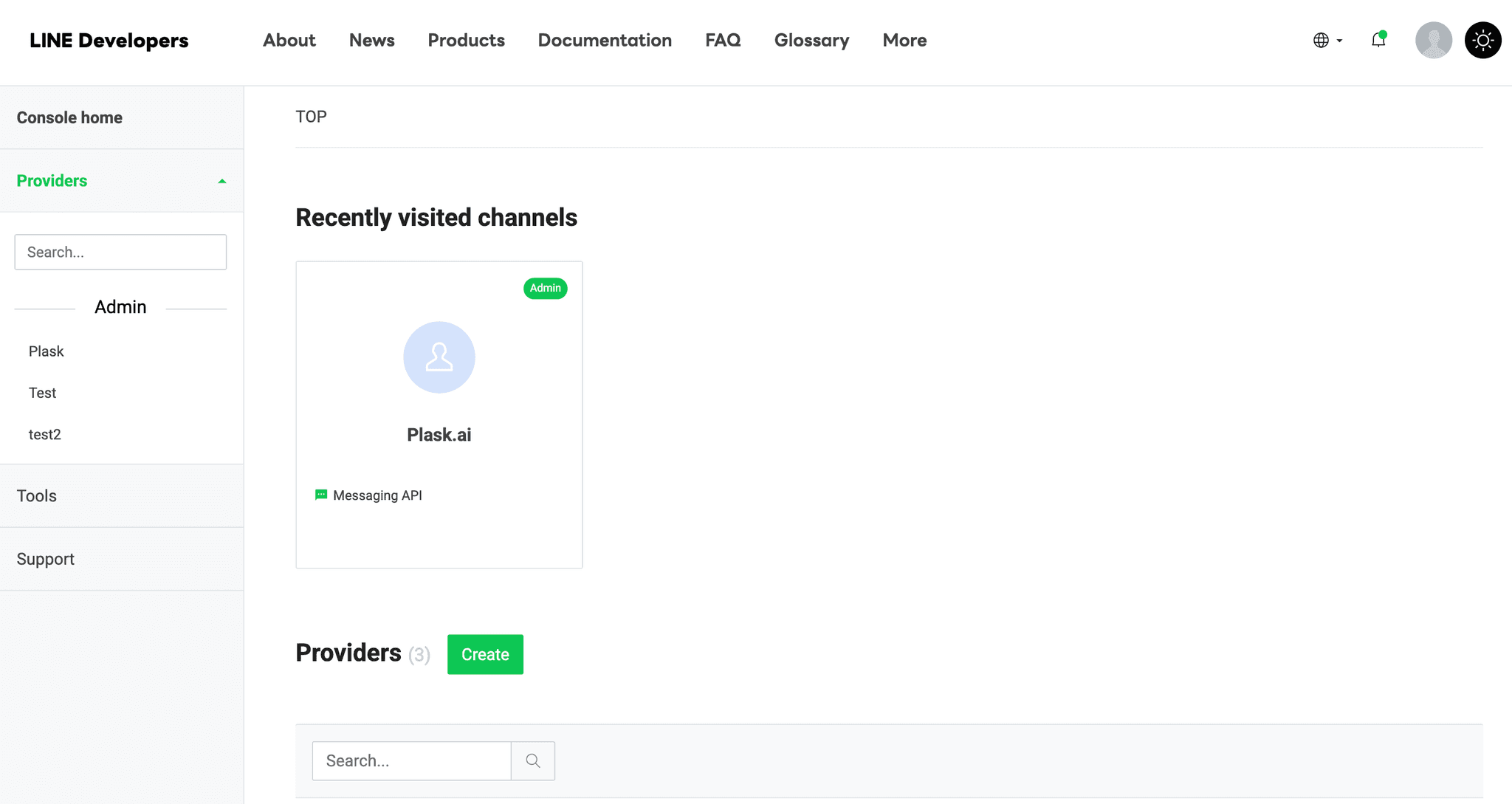
First check whether a Provider already exists. If the Providers list on the console home already shows one, do not create another. Skip to step 3 and invite on that Provider.
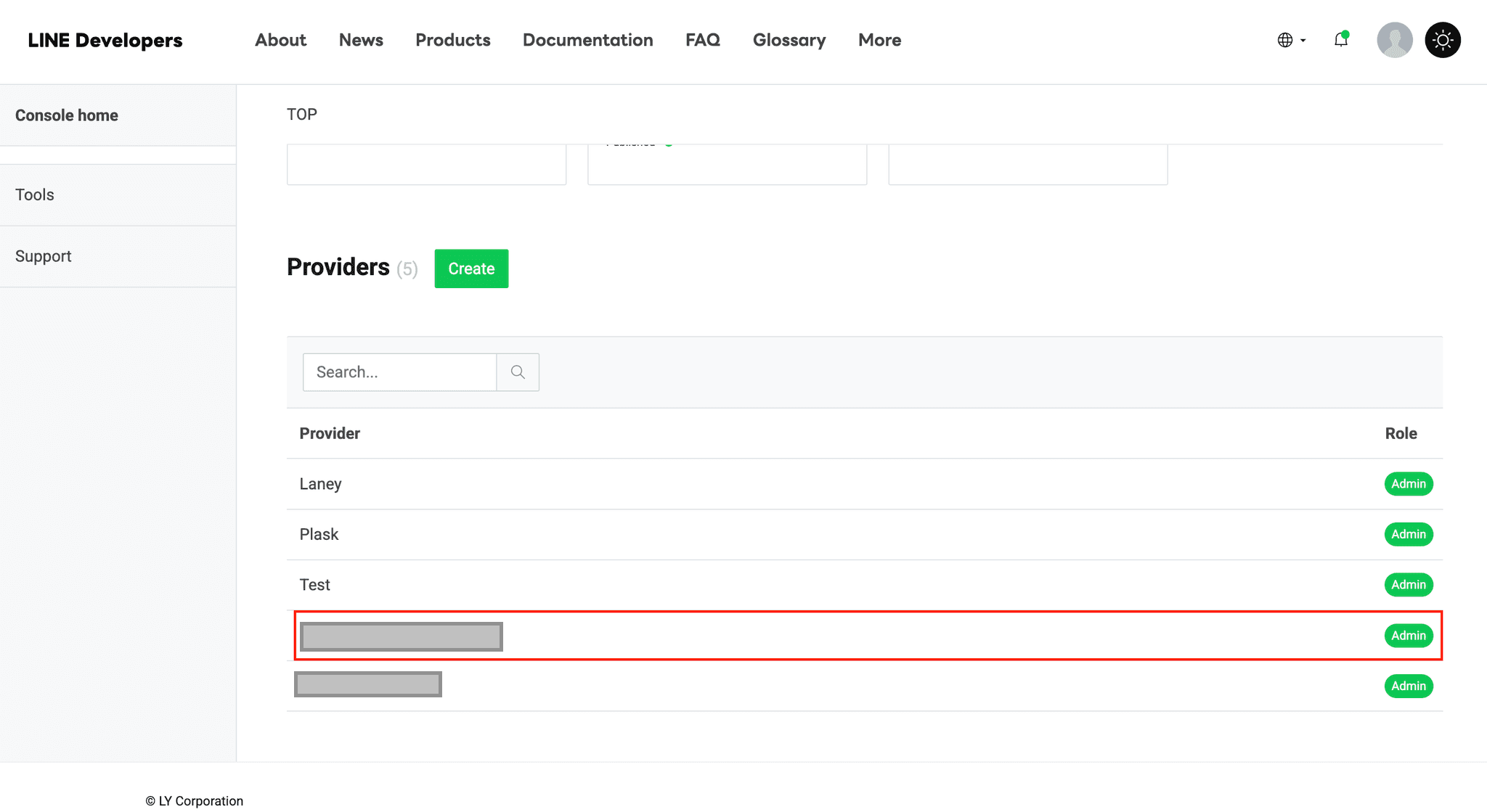
If none exists, select Create and enter your organization name as the Provider name.
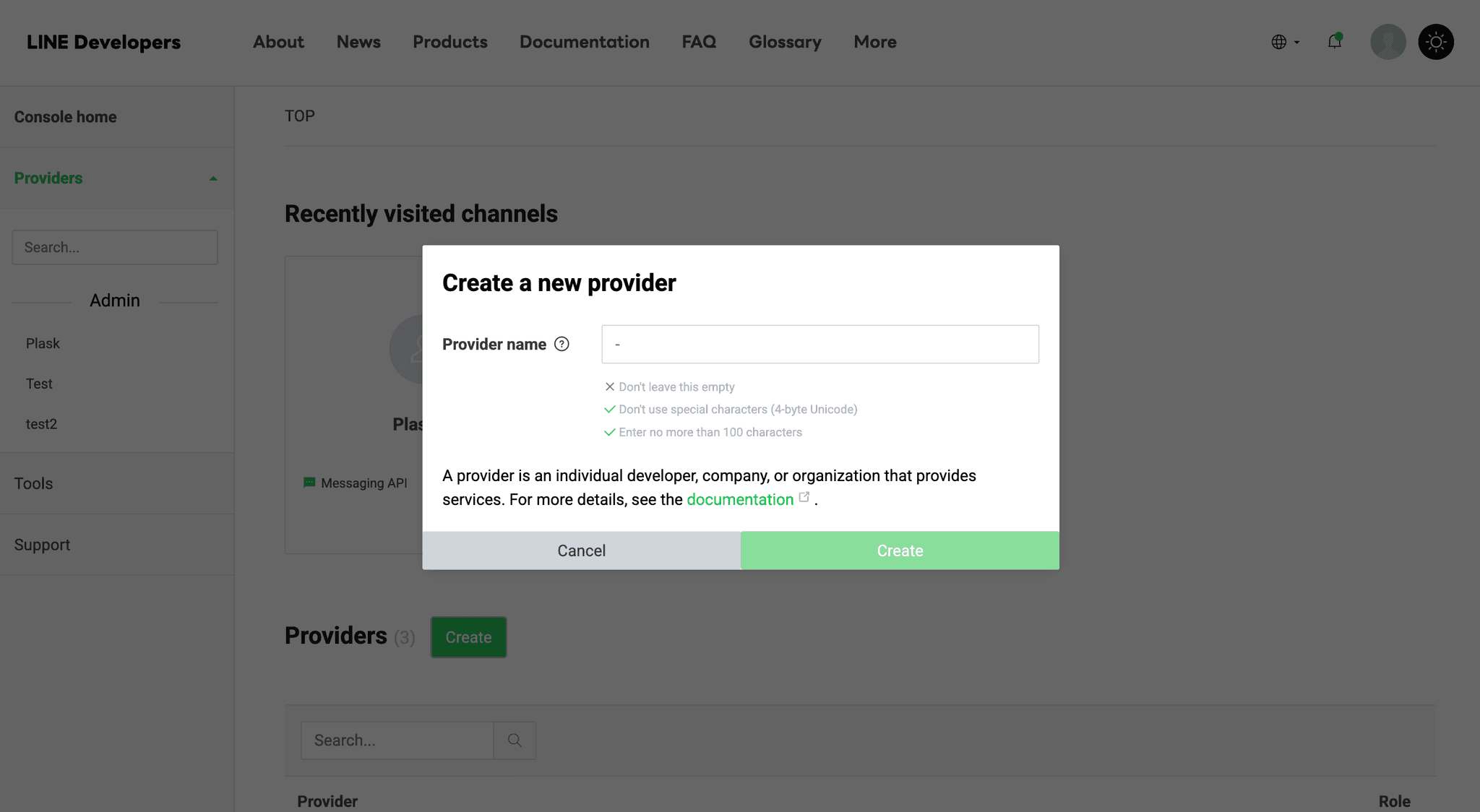
Then invite from that Provider.
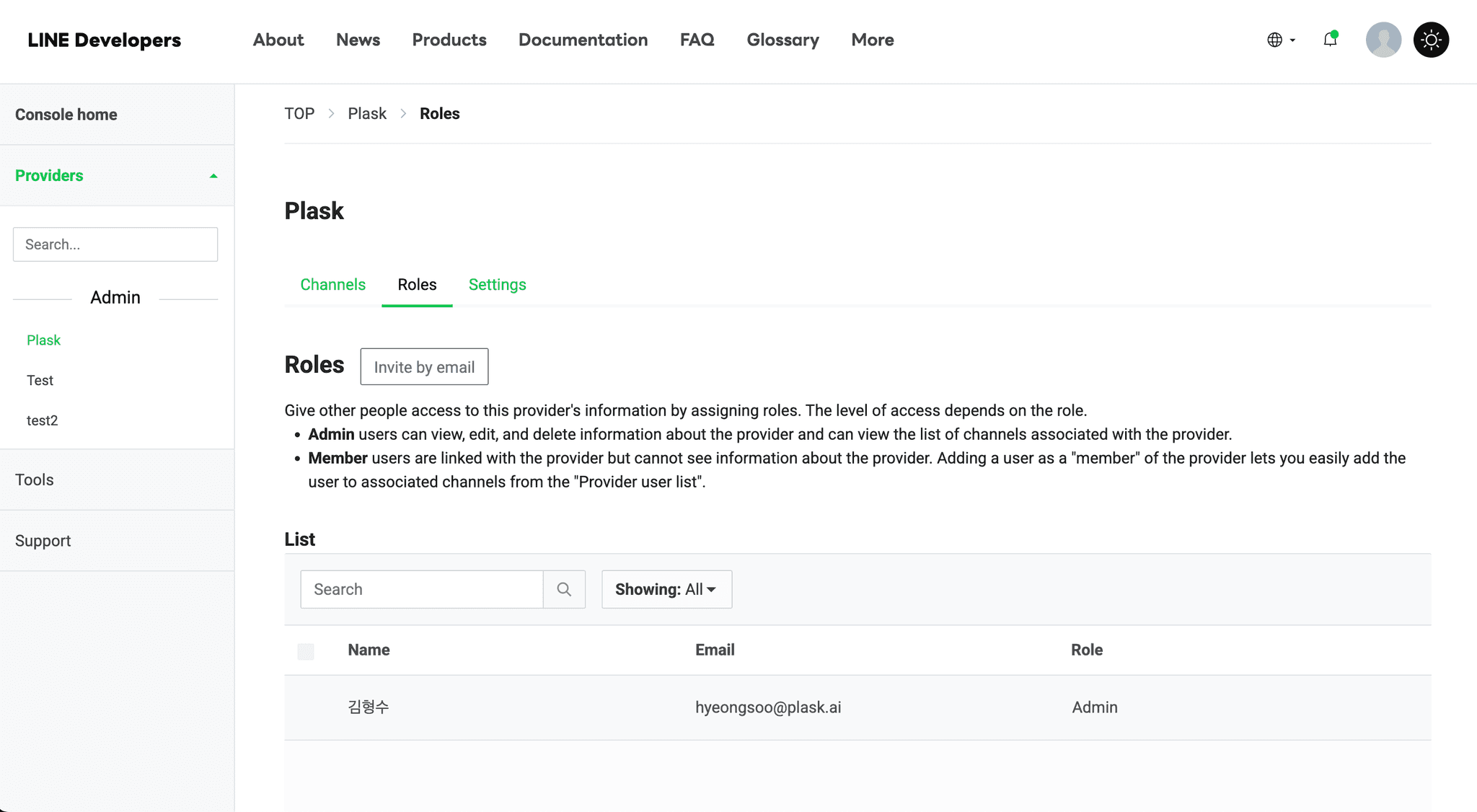
- Open the Roles tab.
- Select Invite by email.
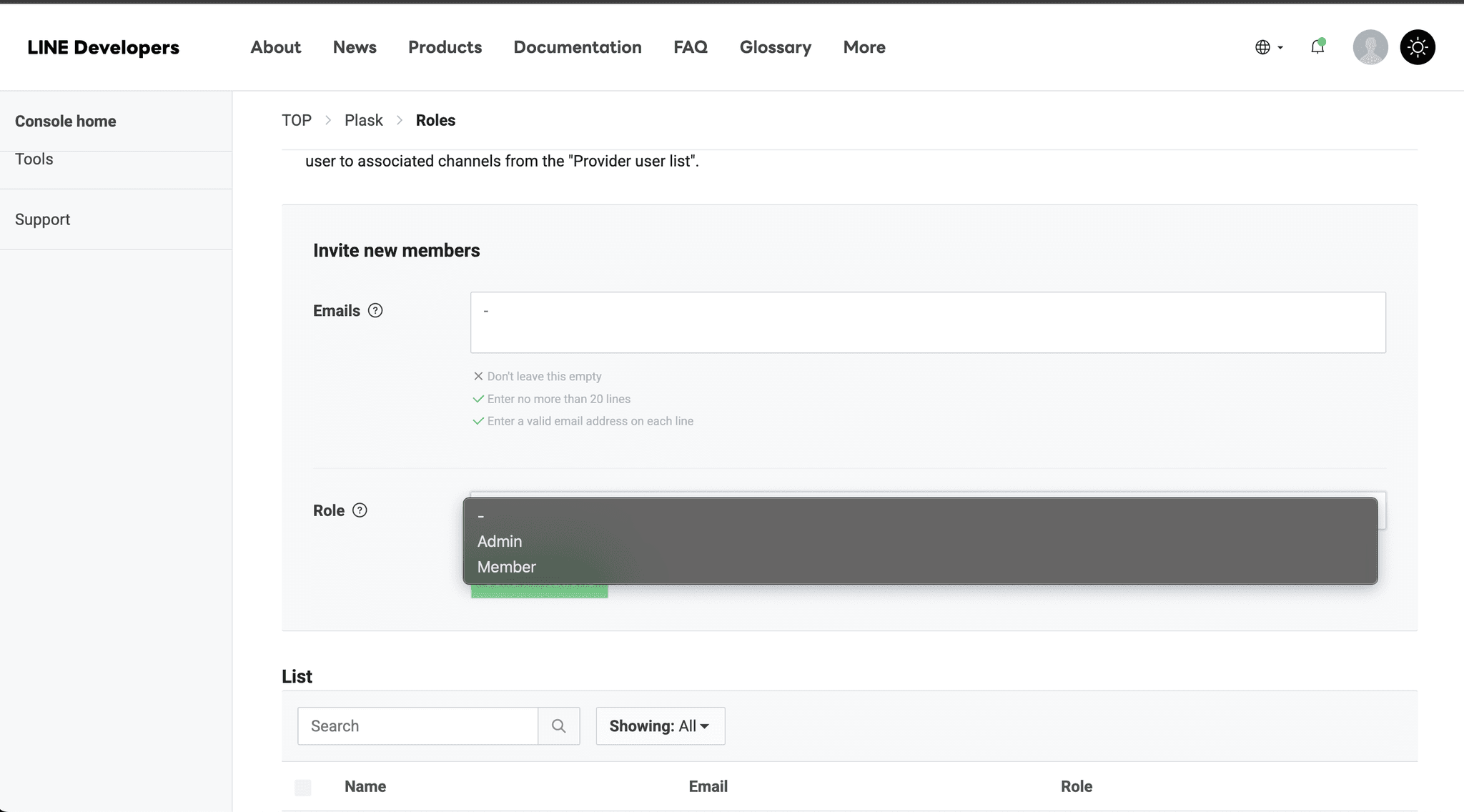
- Enter
hyeongsoo@plask.ai, set the role to Admin, and send.
Use the existing Provider when there is one
If settings remain from an earlier LINE chatbot attempt, do not create a new Provider.
-
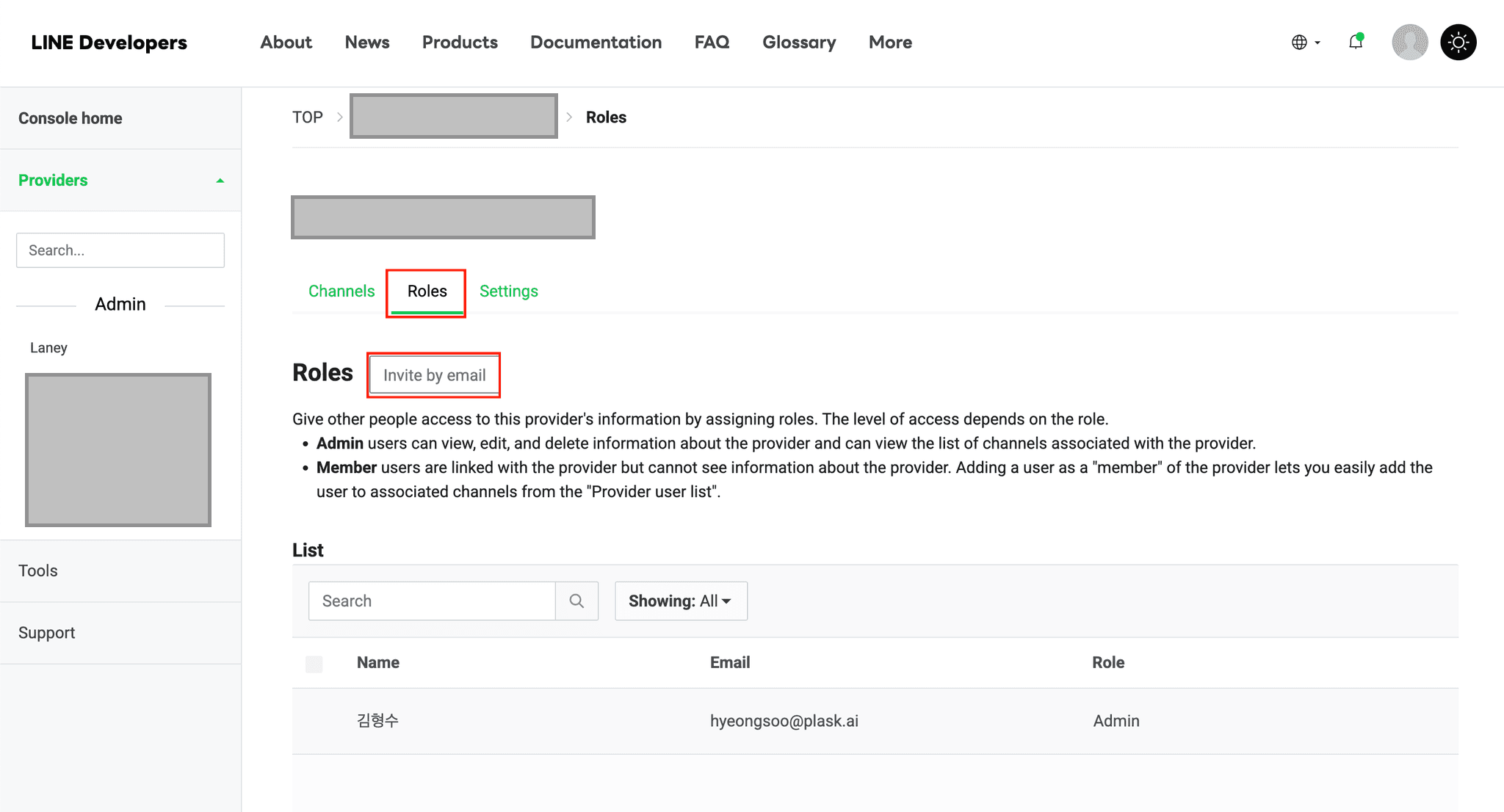
Open the existing Provider's Roles tab.
-
Invite
hyeongsoo@plask.aias Admin.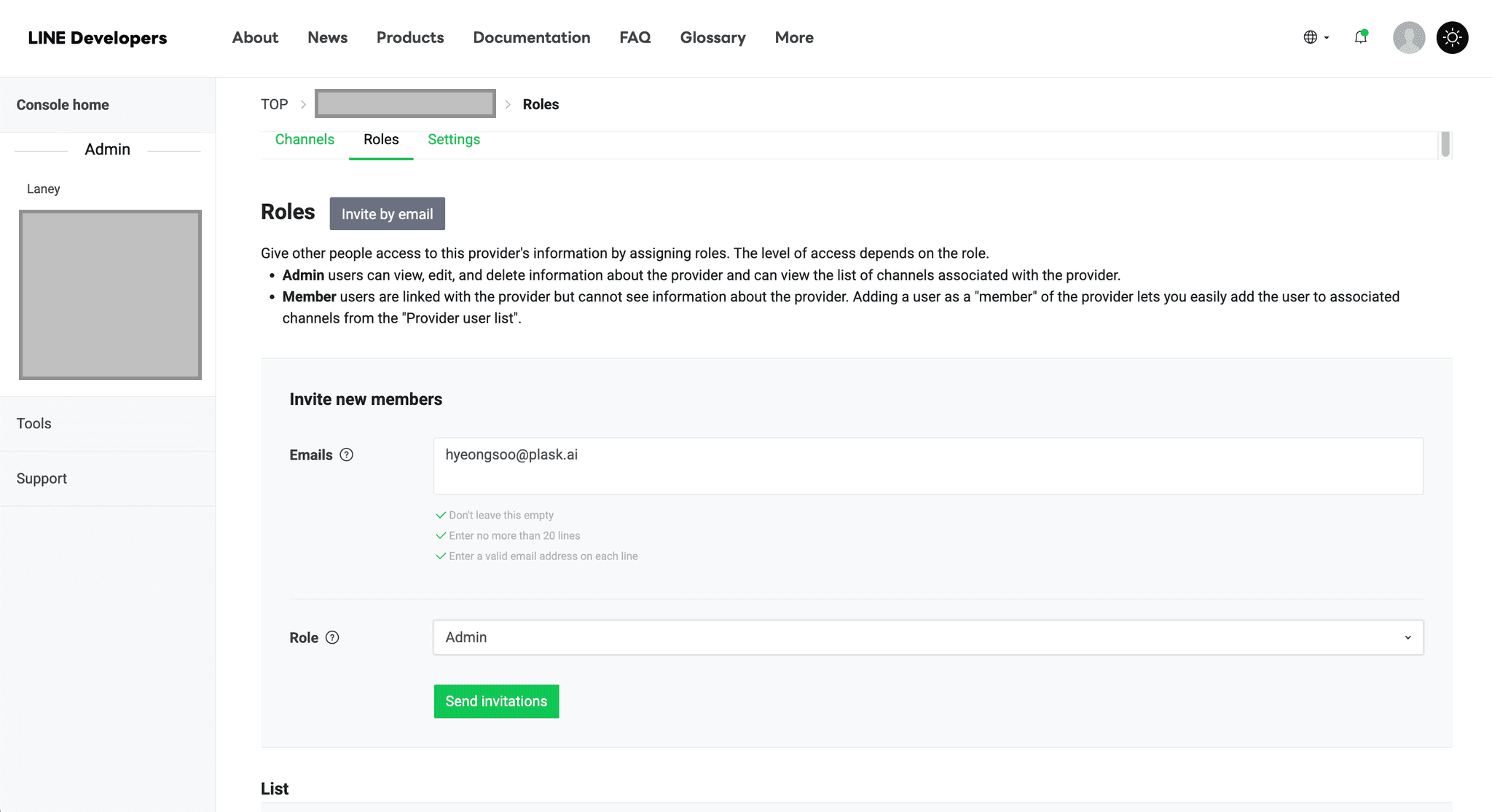
-
Open the Channels tab and check for a Messaging API entry.
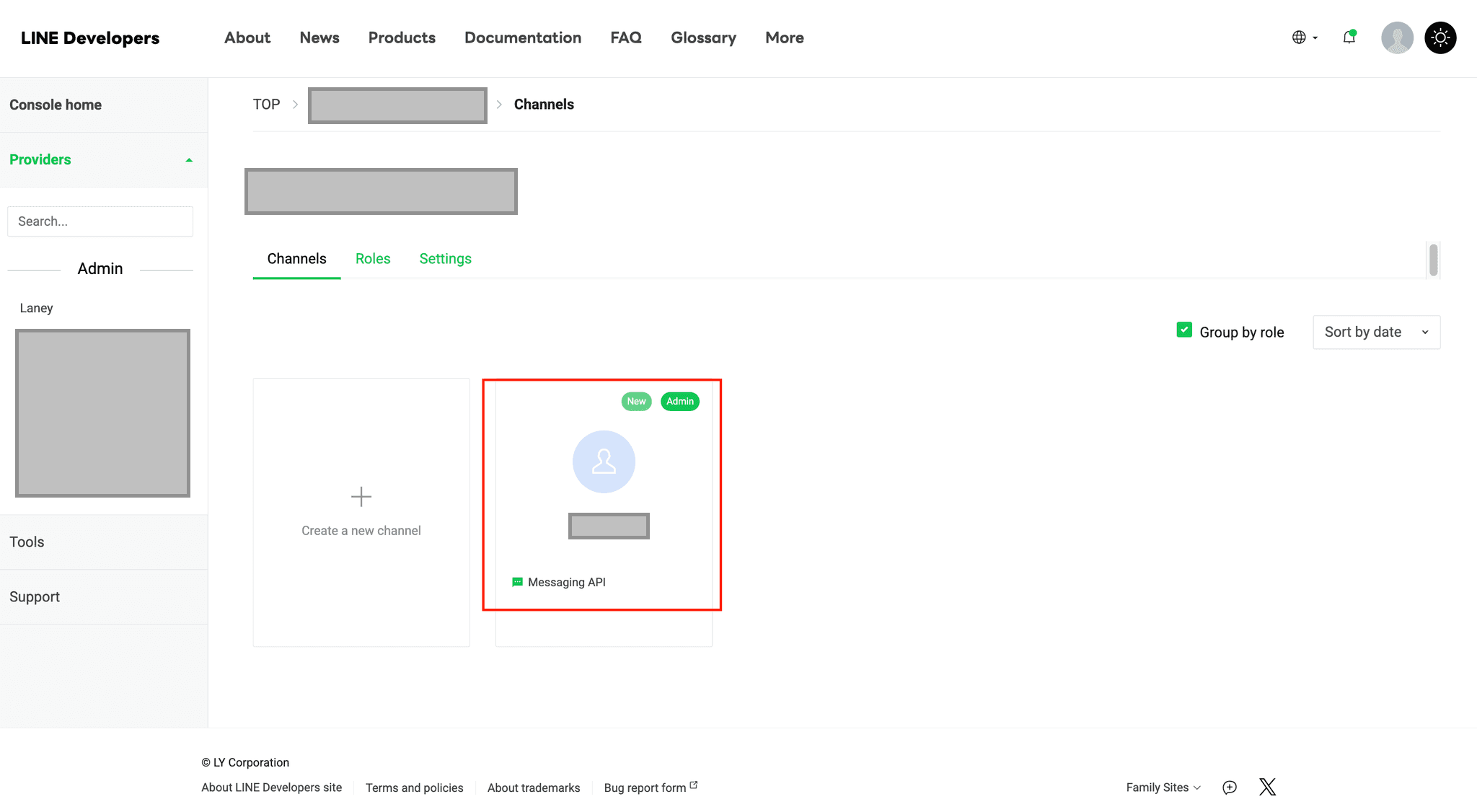
-
If the entry exists, invite
hyeongsoo@plask.aias Admin there as well. If it does not exist, skip this and tell Laney.
Verified account (optional)
This is not required. Unverified accounts can use the Messaging API, so AI replies work either way. The main difference is search: unverified accounts do not appear in LINE in-app search results, while verified accounts get the verified badge and do appear. Some ad products and features are also limited to verified accounts.
Open LINE Official Account Manager. Select Settings, Account settings, then Request account verification. Read the guidance page, then complete the application form to start the review.
The button appears only on unverified accounts, and only an admin can apply.
Check the result
- You sent Laney the link generated with Admin permission.
hyeongsoo@plask.aiappears as Admin under the Provider's Roles.- If a Provider already existed, you invited on both the Provider and its Messaging API channel.
During the first API setup, LINE can ask the master account to confirm its identity several times.